Remove a repost in the TikTok app
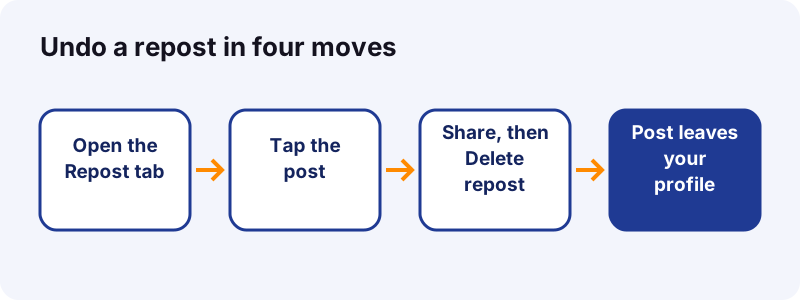
- Open the post you reposted. In the TikTok app, go to your profile and open the Repost tab, then tap the post.
- Tap Share. Tap the Share arrow on the right side of the video.
- Tap Delete repost. In the share panel, tap Delete repost. The post leaves your Repost tab right away.
- Or press and hold. As a shortcut, press and hold on the video and tap Remove repost.
- Check the tab. Go back to the Repost tab on your profile and confirm the post is gone.
What does a repost on TikTok actually do?
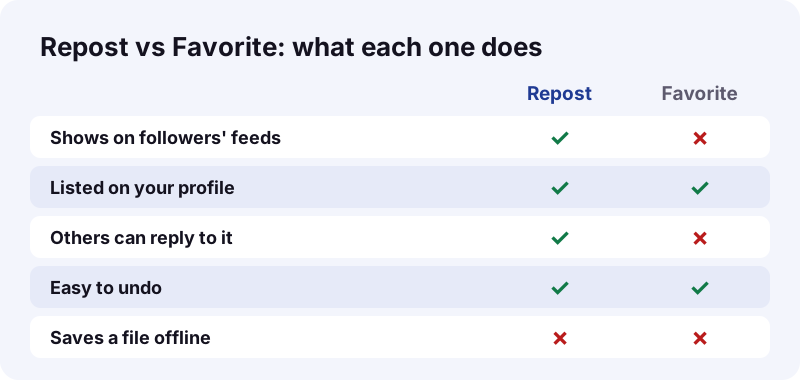
A repost on TikTok pushes someone else's post to your friends and followers in their For You feed, with your profile photo and nickname on it. It does not copy the video to your account or make a new upload. The original creator still owns the post.
A repost only points to the original, so removing it never touches the creator's video. Think of it as a public bookmark that other people can see and reply to. If you want an actual copy of your own clip, that is a job for the free TikTok downloader, not for the Repost button.
- It shows up in other people's feeds with a repost label.
- It is listed in the Repost tab of your profile.
- People who can see it can reply to it.
- It never changes the original post's views, owner or caption.
How do you delete a repost on TikTok?
Open the post you reposted, tap Share, then tap Delete repost. That is the main way, and TikTok's own help page on reposts lists two other taps that do the same job. All three only work inside the TikTok app.
| Method | Where you tap | Button name | Best when |
|---|---|---|---|
| 1. Share panel | Share arrow on the video | Delete repost | You are already watching the post |
| 2. Long press | Anywhere on the video | Remove repost | You want the fewest taps |
| 3. Your photo | Your profile photo at the bottom | Remove | The post shows up in your feed |
The labels differ a little: the Share panel says Delete repost, the long-press menu says Remove repost, and the photo menu just says Remove. They all do the same thing.
Method 1: how do you use the Share button to undo a repost?
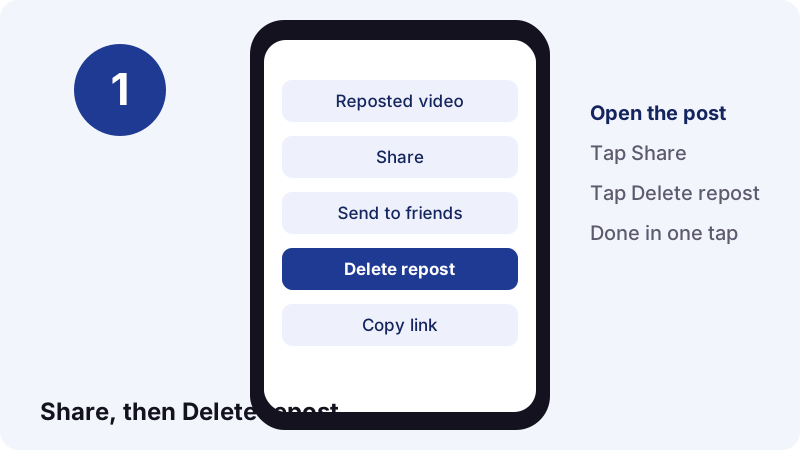
Tap the Share arrow on the post, then tap Delete repost. This is the route most people find first because the Repost button lives in the same panel.
- Open the TikTok app and go to the post you reposted.
- Tap the Share arrow on the right side.
- Find Delete repost in the panel and tap it.
- Close the panel. The post is no longer in your Repost tab.
If the panel only shows Repost and not Delete repost, the post is not reposted from the account you are using. Check that you are signed in to the right account.
Method 2: can you press and hold to remove a repost?
Yes. Press and hold on the video until a menu appears, then tap Remove repost. It skips the Share panel, so it is the quickest route when the video is already on screen.
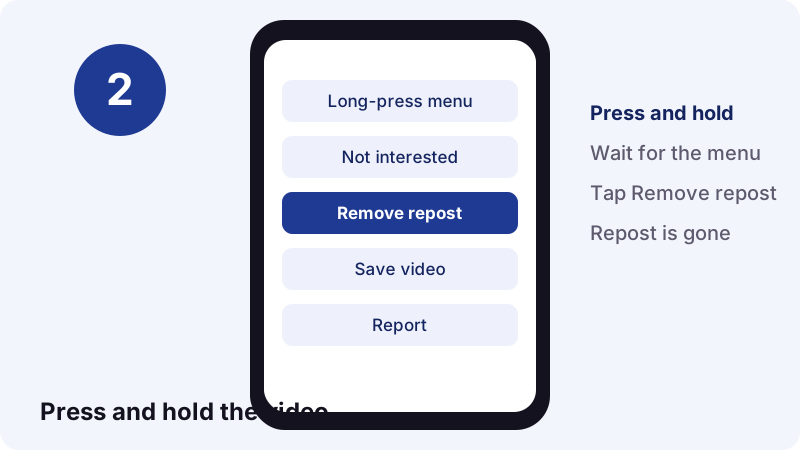
- Hold your finger on the video itself, not on the caption or buttons.
- Wait a moment for the menu to slide up.
- Tap Remove repost.
This also works well when you are scrolling your own Repost tab and want to clear posts one after another.
Method 3: what does tapping your profile photo on the post do?
On a post you reposted, your profile photo appears at the bottom. Tap it, then tap Remove to undo your repost. If friends also reposted the same video, their photos show next to yours.
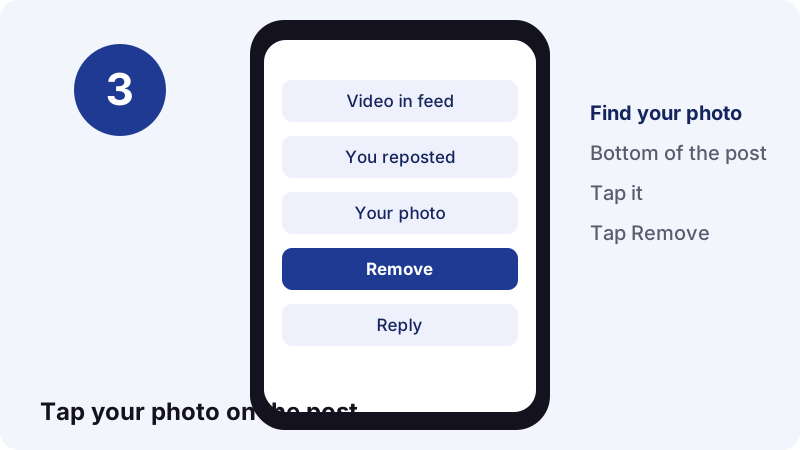
This route is handy when a video you reposted pops up again in your feed. You do not need to go back to your profile first. Just make sure you tap your own photo and not a friend's.
How do you find a video you reposted?
Go to Profile and open the Repost tab. TikTok Help says reposted content is listed there, so it is the best starting point when you no longer remember which video it was.
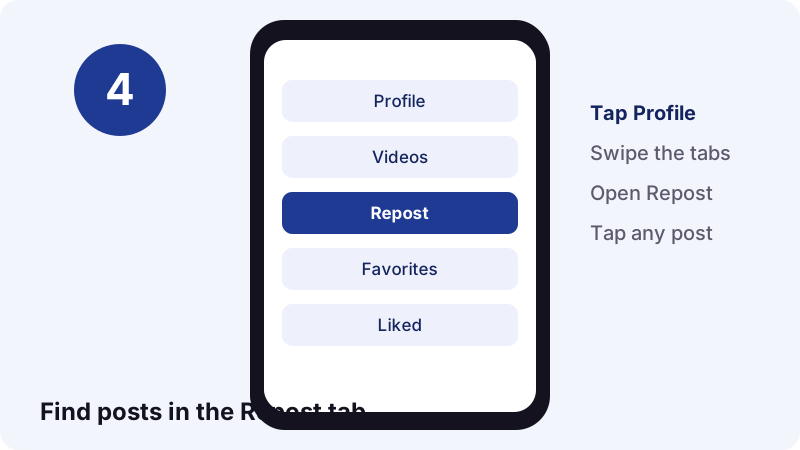
- Tap Profile at the bottom of the app.
- Look at the row of tabs under your bio.
- Tap the Repost tab.
- Tap the post you want to remove, then use any of the three methods.
If you do not see a Repost tab at all, you probably have not reposted anything from this account yet, or your app is out of date.
What happens to replies when you remove a repost?
They go too. Removing a repost on TikTok deletes every reply people left on that repost. Comments on the original post are not affected, because those belong to the creator's video, not to your repost.
“Keep in mind that after you remove a repost, all related replies will also be deleted.”
So if someone wrote a reply you want to keep, take a screenshot first. Once the repost is gone, those replies cannot be brought back by reposting again.
How do you delete just one reply to your repost?
You can remove a single reply and keep the repost. Open the post, tap your profile photo at the bottom, press and hold the reply, then tap Delete.
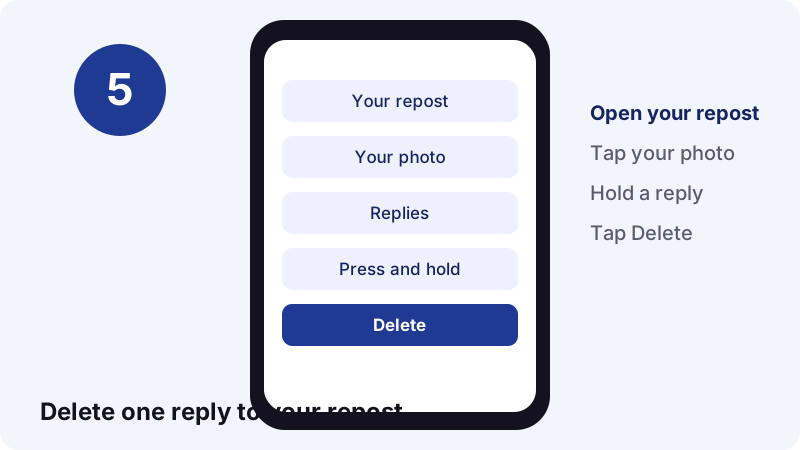
- Open the content you reposted.
- Tap your profile photo at the bottom of the post.
- Press and hold the reply you want gone.
- Tap Delete.
TikTok Help points out that your comment privacy settings do not apply to repost replies. If you get unwanted replies often, deleting them one by one or removing the repost are the controls you have.
Is it different on iPhone and Android?
No. TikTok's help page gives one set of steps for the TikTok app, with no separate iPhone or Android version. The buttons sit in the same place on both.
| Device | Steps to remove | If the option is missing |
|---|---|---|
| iPhone / iPad | Same 3 methods in the app | Update TikTok in the App Store |
| Android phone | Same 3 methods in the app | Update TikTok in Google Play |
| Computer browser | Not covered in TikTok Help | Use the phone app |
The one real difference is how you update the app. Apple explains how to update apps manually from the App Store, and Google Play has its own update steps for Android.
Can you remove a repost on a computer?
TikTok's instructions start with “In the TikTok app” for every step, and we found no documented way to undo a repost on tiktok.com in a browser. Use your phone or tablet for this job.
Many people use TikTok on a computer to watch and save videos, which is fine. If you are on a Mac, our guide to downloading TikTok videos on a Mac covers the desktop side. Repost clean-up still happens on the phone.
Can you delete all reposts at once?
Not with any official tool we could find. TikTok Help only describes removing reposts one post at a time, and there is no bulk delete or select-all button in its instructions as of October 2026.
Be careful with apps or browser add-ons that promise to clear every repost in one click. They usually ask for your TikTok login, which puts your account at risk. The safe way is slow but simple:
- Open the Repost tab on your profile.
- Tap the first post.
- Press and hold, then tap Remove repost.
- Swipe to the next post and repeat.
- Refresh the tab when you are done to check it is empty.
With the long-press route, each post takes about two taps. Fifty reposts is a few minutes of work, not an afternoon.
Who can see your reposts?
It depends on whether your account is public or private. On a public account, reposts, repost text and replies are visible on your profile. On a private account, only your followers can see them.
| Account type | Who sees your reposts | Where they see them |
|---|---|---|
| Public | Anyone who can view your profile | Your profile and their For You feed |
| Private | Only your approved followers | Your profile and their For You feed |
You can switch between the two in Settings and privacy, then Privacy, then Private account, as TikTok explains in its guide to private and public accounts. Going private does not delete reposts; it only narrows who sees them.
Why is the Delete repost option missing?
Usually because you are on the wrong account, the app is old, or the post was never reposted by you. Work through these checks in order.
- Wrong account. If you switch between accounts, the repost lives only on the one that made it.
- Old app version. Update TikTok from the App Store or Google Play and try again.
- You liked or favorited it. A heart or a bookmark is not a repost, so there is nothing to delete.
- The creator removed the post. If the original is deleted or made private, there may be nothing left for you to open.
- Using a browser. The documented steps are for the app only.
If none of this helps, close the app fully, reopen it and look again in the Repost tab.
Repost, share, favorite or download: which should you use?
Repost when you want your followers to see a post. Favorite when you only want to find it again yourself. Download when you need a file you can keep. Mixing these up is the most common reason people end up deleting reposts.
| Action | Who sees it | Works offline | Best for |
|---|---|---|---|
| Repost | Friends and followers | No | Recommending a post |
| Send to a friend | Only that person | No | Private sharing |
| Favorite | You (and profile visitors if public) | No | Your own watch-later list |
| Download a file | Only you | Yes | Your own videos and backups |
For your own posts, a downloaded copy is the only one that survives if the post goes away. Our free TikTok video downloader saves a public post as an MP4 without the watermark.
Should you save a copy before you remove a repost?
Only if the content is yours or you have permission to keep it. A repost is not a backup: it only points to the creator's post, so if that post is deleted there is no video left behind for you.
- Your own clip: paste its link into the Tiktokioo.com downloader and save the MP4.
- Just the song or voice-over: use TikTok to MP3 for an audio file.
- A photo post: the slideshow downloader saves every image.
- A public story: try the story saver before the 24 hours run out.
Tiktokioo.com only reads public posts. If TikTok does not serve the file, we cannot get it. Respect copyright: the U.S. Copyright Office's fair use page is a good place to read about reusing other people's work.
A five-minute routine to clean up your Repost tab
Set aside five minutes, open the Repost tab and decide on each post: keep, remove, or favorite instead. A quick sweep every month keeps your profile looking the way you want.
- Remove anything you reposted by accident.
- Remove posts that no longer match your account's style.
- Favorite videos you only wanted to rewatch, then remove the repost.
- Delete rude replies that you do not want to wipe the whole repost for.
- Check that the account is public or private as you intend.
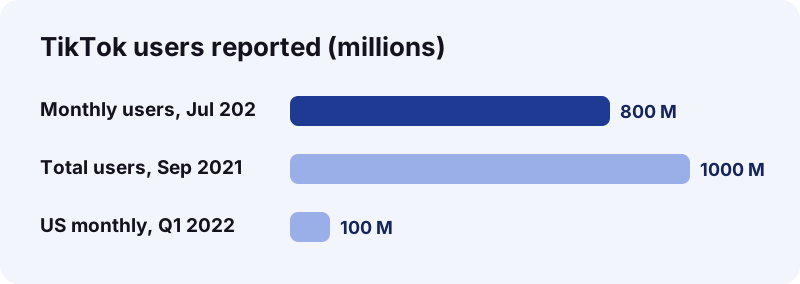
TikTok is huge, so a repost can be seen far beyond your close friends. Wikipedia reports the app passed 1 billion users in September 2021. A tidy Repost tab is worth the few minutes. Curious about other quiet profile signals? Read whether you can see who saved your TikTok.
Frequently asked questions
How do I delete a repost on TikTok?
Open the post, tap Share, then tap Delete repost. You can also press and hold the video and tap Remove repost, or tap your profile photo at the bottom of the post and tap Remove.
Does the creator know when I remove a repost?
TikTok Help does not say that creators are notified when a repost is removed, and we could not verify it either way. The original post itself is not changed.
What happens to replies on my repost?
According to TikTok Help, all replies to a repost are deleted when you remove it. Comments on the original post stay.
Can I delete all my reposts at once?
We found no official bulk tool. TikTok's help page only describes removing reposts one by one. The quickest safe way is the Repost tab plus the press-and-hold shortcut.
Where are my reposts on TikTok?
Open Profile and tap the Repost tab. Every post you reposted from that account is listed there.
Can I undo a repost on a computer?
TikTok's instructions are for the app only. Use your phone or tablet to remove a repost.
Who can see what I repost?
On a public account, anyone who can see your profile. On a private account, only your followers. Reposts also appear in their For You feed.
Why can't I find the Delete repost button?
Check that you are on the account that made the repost, update the TikTok app, and make sure the post was reposted rather than liked or favorited.
If I delete a repost, does the video stay on my phone?
No. A repost never saves a file. To keep your own video, save it with the Tiktokioo.com downloader before the post goes away.
Can I repost the same video again later?
Yes, the Repost button comes back in the Share panel once you remove it. Replies from the old repost will not return.
Guides
Video Downloader — Paste a link, get the MP4 without the TikTok logo.
Sources
- Repost — TikTok Help Center
- Choosing between a private or public account — TikTok Help Center
- How to manually update apps from the App Store — Apple Support
- How to update apps on Android — Google Play Help
- TikTok — Wikipedia
- U.S. Copyright Office Fair Use Index — U.S. Copyright Office